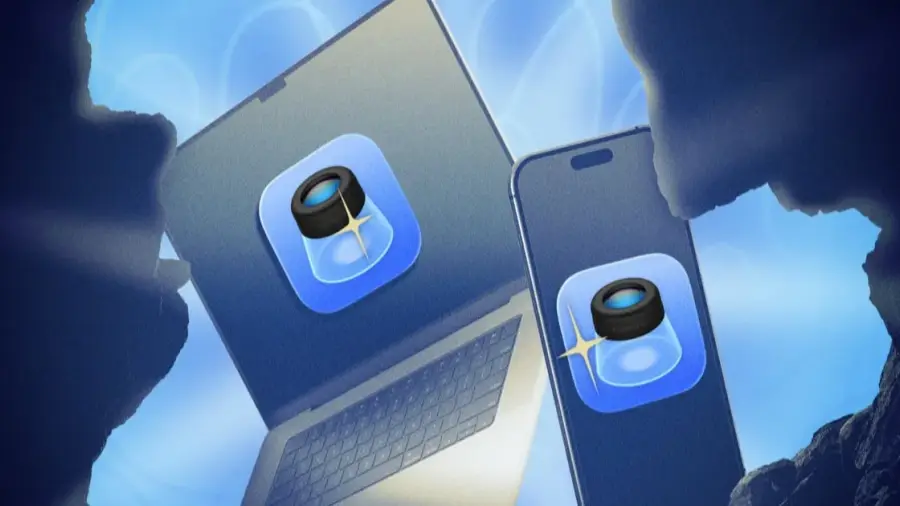
Pengguna Mac sering kali menggunakan aplikasi Preview hanya untuk membuka gambar atau PDF. Namun, banyak yang tidak menyadari bahwa aplikasi ini memiliki beragam fitur canggih yang dapat menghemat waktu dan uang. Dari menghapus latar belakang foto hingga menandatangani dokumen secara digital, Preview bisa menjadi solusi produktivitas yang sangat berguna tanpa perlu menginstal perangkat lunak tambahan.
Manfaat Fitur Quick Look
Salah satu trik Preview yang paling efektif adalah menggunakan fitur Quick Look. Dengan fitur ini, Anda tidak perlu membuka aplikasi Preview untuk melihat isi file. Cukup pilih file yang ingin Anda lihat dan tekan spasi. Fitur ini akan menampilkan pratinjau file tanpa membukanya, yang sangat berguna untuk gambar, PDF, atau cek isi folder. Tekan spasi lagi untuk menutup pratinjau.
Membaca PDF dengan Latar Belakang Gelap
Jika Anda tidak nyaman membaca dokumen PDF dengan latar belakang putih terang, Anda bisa mengubah tampilan tersebut. Buka PDF di Preview, pilih View di menu bar, lalu klik Use Dark Appearance for PDF. PDF Anda akan berubah menjadi latar belakang gelap dengan teks putih, membuat pengalaman membaca lebih nyaman, terutama di malam hari.
Mengedit Gambar dengan Mudah
Anda dapat membuka gambar langsung dari clipboard tanpa harus menyimpannya terlebih dahulu. Salin gambar dari aplikasi mana pun, buka Preview, dan tekan Command + N atau pilih File > New from Clipboard. Ini akan sangat berguna untuk mengedit tangkapan layar atau gambar dari browser.
Fitur Lain yang Berguna di Preview
Preview juga dapat digunakan untuk menghapus latar belakang foto. Cukup buka gambar, tekan Command + Shift + K, atau pilih Tools > Remove Background. Selain itu, Anda bisa menyalin teks dari gambar dan PDF. Jika dokumen dalam bentuk gambar pindaian, Preview dapat membantu Anda mengekstrak teks dengan mudah.
Dengan menggunakan iPhone sebagai pemindai dokumen, Anda dapat mengimpor gambar langsung ke Preview. Buka aplikasi, pilih File > Import from iPhone > Scan Documents, dan arahkan kamera iPhone ke halaman yang ingin dipindai.
Preview juga memudahkan Anda untuk melihat metadata foto dan menggabungkan beberapa halaman PDF menjadi satu dokumen. Anda dapat menandatangani dokumen secara digital dan menambahkan atau menghapus kata sandi dari PDF dengan mudah.
Dengan menguasai 10 trik ini, Anda tidak perlu lagi bergantung pada aplikasi berbayar untuk mengedit PDF atau gambar. Preview adalah alat serbaguna yang sayang untuk dilewatkan. Cobalah salah satu trik di atas dan rasakan peningkatan produktivitas Anda.
Sumber: https://telset.id/how-to/10-trik-preview-mac-untuk-edit-pdf-gambar-tanpa-aplikasi-tambahan