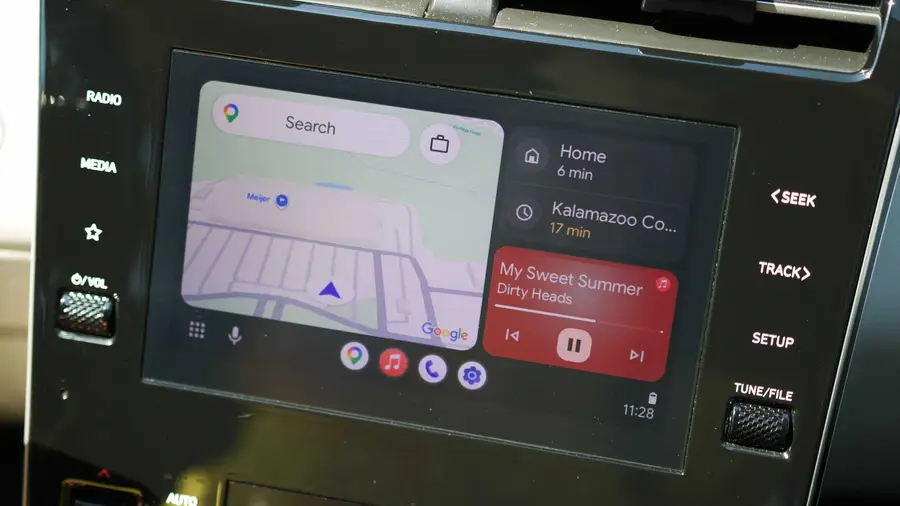
Memiliki mobil baru adalah pengalaman yang menyenangkan, terutama ketika teknologi di dalamnya jauh lebih maju dibandingkan mobil lama. Bagi yang baru membeli mobil, khususnya yang dilengkapi dengan Android Auto, ada beberapa pengaturan penting yang sebaiknya diketahui agar pengalaman berkendara menjadi lebih optimal. Berikut adalah lima pengaturan Android Auto yang bisa Anda manfaatkan.
1. Mengubah Tampilan Taskbar
Secara default, taskbar di Android Auto berfungsi sebagai tempat aplikasi Anda. Namun, Anda bisa mengubahnya menjadi lebih fungsional. Cukup buka aplikasi Pengaturan di ponsel Anda, cari 'Android Auto', dan akses pengaturan tersebut. Di bagian 'Tampilan', aktifkan opsi 'Widget Taskbar'. Dengan ini, taskbar Anda akan menampilkan widget kecil yang sesuai dengan aktivitas Anda. Misalnya, saat Anda menggunakan Google Maps dan mendengarkan musik, Anda akan melihat kontrol pemutar musik di taskbar.
2. Kustomisasi Tampilan Launcher
Android Auto menawarkan beberapa opsi kustomisasi, meskipun tidak seluas di ponsel Android. Di halaman pengaturan Android Auto yang sama, Anda bisa menggulir ke bagian 'Tampilan' dan pilih 'Kustomisasi launcher'. Di sini, Anda dapat mengatur urutan aplikasi di dalam drawer dan menyembunyikan aplikasi yang tidak ingin Anda lihat. Meskipun ini bukan kustomisasi yang besar, tetapi bisa mempermudah akses aplikasi yang sering Anda gunakan.
3. Mengubah Tata Letak Kontrol Media
Pada umumnya, Android Auto menampilkan aplikasi navigasi di sisi kiri dan aplikasi media di sisi kanan. Namun, jika Anda merasa kontrol media terlalu jauh dari jangkauan, Anda bisa mengubah tata letaknya. Dari pengaturan Android Auto, gulir ke bagian 'Lanjutan', lalu pilih 'Ubah tata letak' dan aktifkan opsi 'Media lebih dekat ke pengemudi'. Dengan cara ini, kontrol media akan lebih mudah dijangkau saat berkendara.
4. Nonaktifkan Pemutaran Musik Otomatis
Secara default, Android Auto akan otomatis memutar musik atau podcast yang terakhir Anda dengarkan saat mobil dinyalakan. Jika Anda lebih suka memilih sendiri apa yang ingin didengar, Anda bisa menonaktifkan fitur ini. Kembali ke pengaturan Android Auto, temukan bagian 'Pemula' dan matikan opsi 'Mulai musik secara otomatis'. Sekarang, Anda bisa memutuskan kapan dan apa yang ingin didengar.
5. Memanfaatkan Aksi Gemini
Gemini dapat menjadi alat yang sangat berguna jika Anda tahu cara memanfaatkannya. Di halaman 'Kustomisasi launcher', Anda bisa menambahkan shortcut untuk aksi Gemini. Misalnya, Anda bisa membuat aksi bernama “Mengemudi pulang” yang akan mengatur navigasi, suhu AC, dan bahkan memutar playlist favorit dengan hanya satu perintah. Ini dapat menghemat waktu dan meningkatkan kenyamanan berkendara Anda.
Dengan mengetahui dan memanfaatkan pengaturan-pengaturan ini, pengalaman berkendara Anda dengan Android Auto bisa menjadi lebih menyenangkan dan efisien. Jangan ragu untuk menjelajahi lebih lanjut tentang fitur-fitur lain yang ditawarkan oleh Android Auto untuk meningkatkan kenyamanan berkendara Anda.
Sumber: https://www.androidauthority.com/first-car-android-auto-most-important-settings-3684583/