Salah satu kekhawatiran yang sering muncul saat bergabung dengan beta Android baru adalah risiko merusak ponsel akibat pembaruan yang corrupt dari Google. Banyak pengguna Pixel yang mengalami bootloop, terutama saat pembaruan tertentu ditarik atau ditunda karena masalah yang muncul. Untungnya, mengalami bootloop pada Pixel bukanlah akhir dari segalanya.
Alat Resmi untuk Memperbaiki Pixel Anda
Ada dua alat online resmi yang dapat membantu Anda menyelamatkan Pixel yang terbrick, yaitu Android Flash Tool dan Pixel Update and Software Repair Tool. Berikut adalah cara dan waktu yang tepat untuk menggunakan alat-alat ini.
Pemahaman tentang Android Flash Tool
Jika Anda pernah melakukan flashing Pixel dari awal, Anda pasti sudah akrab dengan metode ADB atau mungkin pernah menggunakan Android Flash Tool. Alat resmi ini memudahkan proses flashing tanpa perlu menggunakan terminal atau mengatur ADB, sangat cocok bagi mereka yang tidak nyaman dengan langkah-langkah teknis.
Google menyediakan panduan lengkap untuk seluruh proses, mulai dari penginstalan Google USB Driver (hanya untuk Windows), membuka bootloader, menghubungkan ponsel ke komputer, hingga memilih dan mengaplikasikan build yang diinginkan. Namun, ada beberapa hal yang perlu diingat saat menggunakan alat ini.
Persyaratan dan Keterbatasan Android Flash Tool
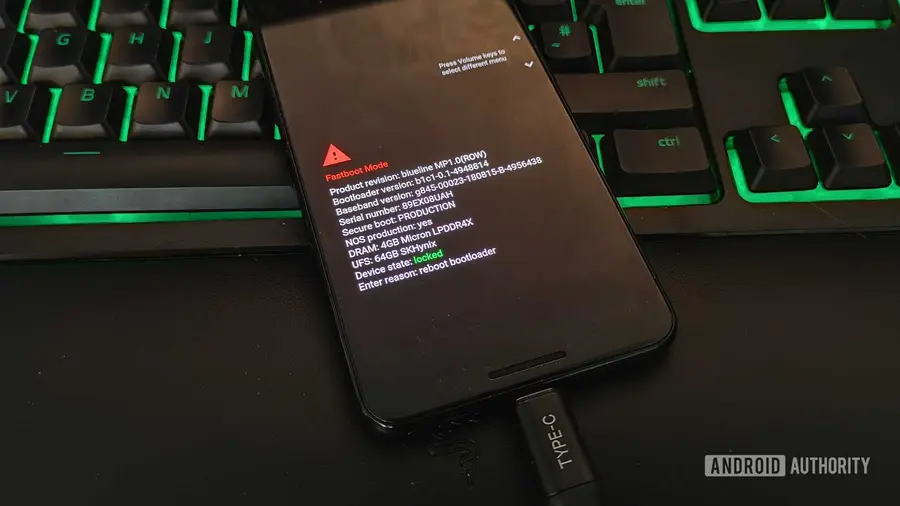
Anda mungkin perlu mengatur Pixel Anda dalam mode Fastboot dengan mematikan ponsel dan menyalakannya kembali sambil menekan tombol volume turun, terutama jika mengalami bootloop. Pastikan juga untuk menghindari penggunaan hub USB dan gunakan kabel langsung untuk menghubungkan ponsel ke komputer.
Namun, penting untuk dicatat bahwa alat ini akan menghapus semua data ponsel Anda dan memerlukan bootloader yang sudah dibuka. Jika Pixel Anda baru saja mengalami bootloop dan Anda belum membuka bootloader sebelumnya, sayangnya, Anda tidak akan bisa melanjutkan.
Pengenalan Pixel Update and Software Repair Tool
Situs Pixel Repair adalah alternatif yang sangat berguna bagi pemilik Pixel 3 atau yang lebih baru. Alat ini dirilis oleh Google sebagai jaring pengaman untuk membantu pengguna memulihkan ponsel setelah pembaruan yang buruk.
Situs ini menggunakan WebUSB dan juga memerlukan Google USB Driver untuk pengguna Windows. Untuk pengguna Mac, Linux, dan Chrome OS, Anda tidak perlu menginstal driver tersebut. Alat ini memandu Anda melalui proses pencadangan data, mematikan ponsel, masuk ke mode Fastboot, dan akhirnya ke Rescue Mode. Setelah itu, Anda dapat menghubungkan ponsel ke komputer dan mendapatkan pembaruan over-the-air yang dianggap paling sesuai untuk Pixel Anda.
Perbandingan antara Kedua Alat
Perbedaan utama antara Android Flash Tool dan Pixel Repair Tool adalah bahwa yang pertama memungkinkan Anda untuk meng-flash seluruh gambar pabrik Android, sementara yang kedua hanya memungkinkan Anda untuk menerapkan pembaruan terbaru atau menerima upgrade. Oleh karena itu, Pixel Repair Tool dapat digunakan meskipun bootloader masih terkunci.
Dengan Pixel Repair Tool, Anda dapat memperbaiki penulisan yang terputus selama pembaruan, membersihkan cache sistem, dan menghindari korupsi partisi pada ponsel Anda. Jika Anda bingung tentang kapan harus menggunakan masing-masing alat ini, sebaiknya coba Pixel Repair Tool terlebih dahulu karena lebih sedikit persyaratannya dan tidak menimbulkan risiko kehilangan data. Jika itu gagal, barulah coba Android Flash Tool sebagai langkah kedua.
Sumber: https://www.androidauthority.com/android-sites-help-unbrick-google-pixel-how-3681441/