Hidden Android Features You Need to Try
Over years of using Android smartphones, I have discovered various tricks and hidden features that can enhance the user experience. However, I keep finding features I didn’t know about before due to the complexity of menus and differences between Android interfaces. After discovering these features, I feel like a preacher sharing good news about Android optimization. Here are some very useful hidden features that I hope more people will know about.
Useful Privacy Dashboard
In the app settings, you can see the permissions each app has, but Android also provides a privacy dashboard that makes this information easier to understand. This dashboard shows the permissions accessed by apps in the last 24 hours in a helpful graphical form. You can also see a summary of specific permissions and which apps accessed them during the past day.
I personally experienced a situation where I accidentally granted permission to an app I didn’t intend to. For example, I found that app X (Twitter) accessed my contacts without me remembering giving permission. Using this privacy dashboard, I was able to revoke unnecessary permissions.
To access the privacy dashboard, go to Settings > Security & privacy > Privacy dashboard. For Samsung users with One UI, the steps are slightly different: Settings > Security and privacy > Permissions used in the last 24 hours.
Share Wi-Fi Connection with QR Code
Often, when someone wants me to connect to their Wi-Fi network, they give me the name and password. However, there is a simpler way to share access to your network by sharing a QR code that is easy to generate.
The process depends on the brand of smartphone you use. Some smartphones automatically display a QR code when you choose the option to share the network, while others require additional steps. Generally, you can access Wi-Fi settings and select the option to share the network.
For example, on Samsung Galaxy phones, you need to go to Settings > Connections > Wi-Fi, then select the gear icon next to the network you are connected to. At the bottom of the screen, there is a button for the QR code.
Set Metered Connection to Save Data
When I carry multiple phones at once, either for reviews or gaming, I usually use one data SIM. However, I faced a problem when the connected phones acted as if my hotspot was a regular Wi-Fi network, quickly consuming my limited data quota.
I then found the option to set a metered connection. With this setting, your phone will treat the network like a cellular network, reducing data usage. On Samsung Galaxy smartphones, you can open Wi-Fi network settings, select the dropdown for See more, then tap Metered network. Set this option to treat the network as metered.
Easily Find Settings
Android is known as an operating system full of menus and settings that can be confusing. Although there is a search function for settings, some items may not appear, such as the default launcher setting. This becomes even more confusing when switching between devices with different Android interfaces.
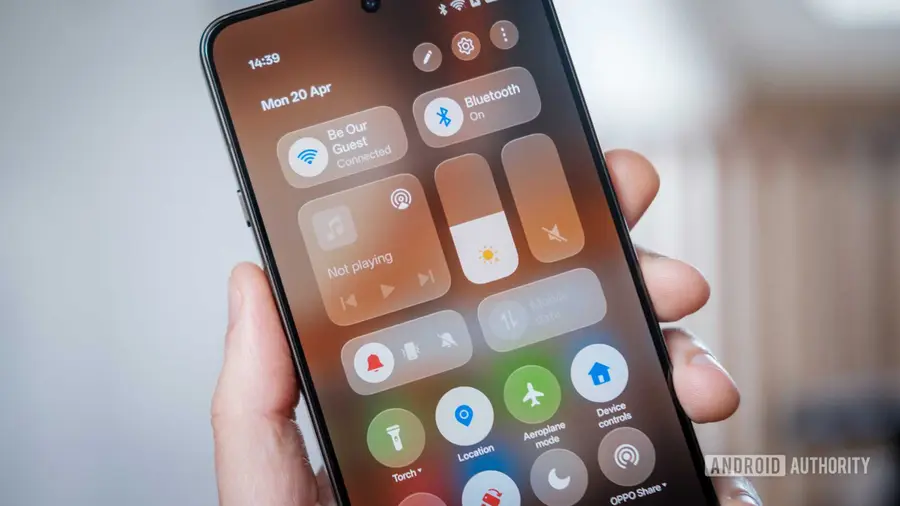
One of my favorite tricks is using the Quick Settings icons to customize and access certain features. Usually, people only use these icons to turn settings on and off, but if you long-press an icon, you will be taken to the settings page for that feature.
For example, if you want to customize the Do Not Disturb schedule, you can long-press the icon to access its settings. This trick helps you spend less time stuck in menus and more time enjoying the features you need.
With these various hidden features, Android offers great potential to enhance the user experience. Unfortunately, many of these features are not always easy to access, and I hope more people can discover and utilize them to maximize their device usage.
Source: https://www.androidauthority.com/buried-android-features-you-need-try-3676379/