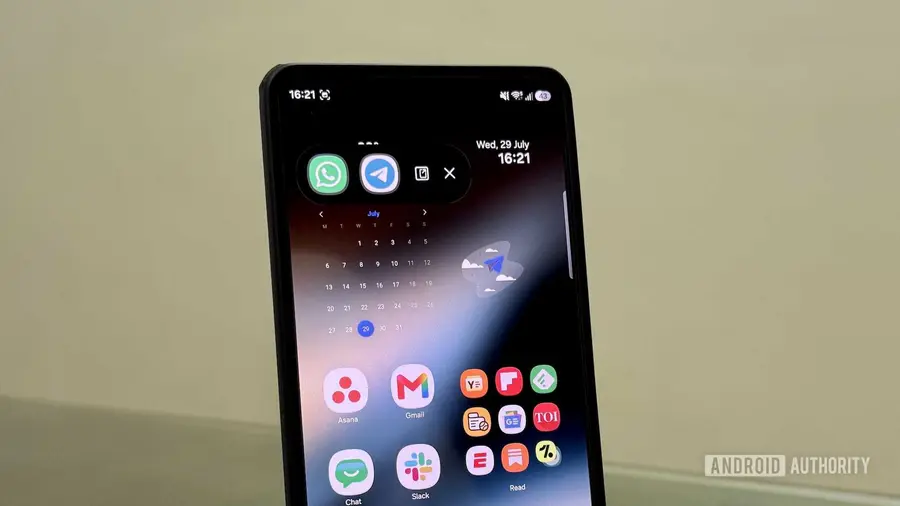
With the release of Android 17, many users are exploring new features, including the multitasking tool known as App Bubbles. While this feature allows you to interact with apps in a floating bubble, Samsung users have had access to a more effective option for quite some time: Pop-Up View.
Understanding Pop-Up View
Samsung's Pop-Up View offers a unique way to multitask on your Galaxy device. Unlike App Bubbles, which provides limited functionality, Pop-Up View allows you to open applications in resizable, floating windows. You can access multiple apps simultaneously while keeping your main application in full-screen mode.
How to Use Pop-Up View
There are various methods to activate Pop-Up View on your Samsung phone:
- Via the Recents Menu: Open the app you want to use, access the Recents menu, swipe to find the app, tap its icon, and select 'Open in pop-up view.'
- Using a Swipe Gesture: Enable the swipe gesture by navigating to Settings > Advanced features > Multi window, and toggle 'Swipe for pop-up view' on. Then, swipe inward from the top corners of the screen to access the app.
- Through the Edge Panel: Swipe the Edge Panel handle to bring it up, drag the desired app to the middle of the screen, and drop it into the pop-up view area.
Benefits of Pop-Up View
Pop-Up View is particularly advantageous for tasks that require quick access to secondary applications. For example, you can watch a YouTube video while chatting on WhatsApp without switching back and forth. It's also beneficial for performing calculations or conversions while using a different app.
Customizing Your Experience
Once you have opened an app in Pop-Up View, you can resize it by dragging the corners. This flexibility allows you to adjust the window size to fit your needs. Additionally, the app window includes controls for minimizing, resizing, or opening in full-screen or split-screen modes, enhancing your multitasking experience.
Samsung's Pop-Up View supports up to five apps simultaneously, allowing for efficient multitasking. You can easily switch between app bubbles and manage your tasks without losing track of different applications.
In summary, while both Samsung's Pop-Up View and Google's App Bubbles serve similar purposes, they offer distinct advantages. Pop-Up View's ability to manage multiple resizable windows makes it a superior choice for users who want a more organized and efficient multitasking experience.
Source: https://www.androidauthority.com/samsung-pop-up-view-better-than-app-bubbles-how-use-3692326/