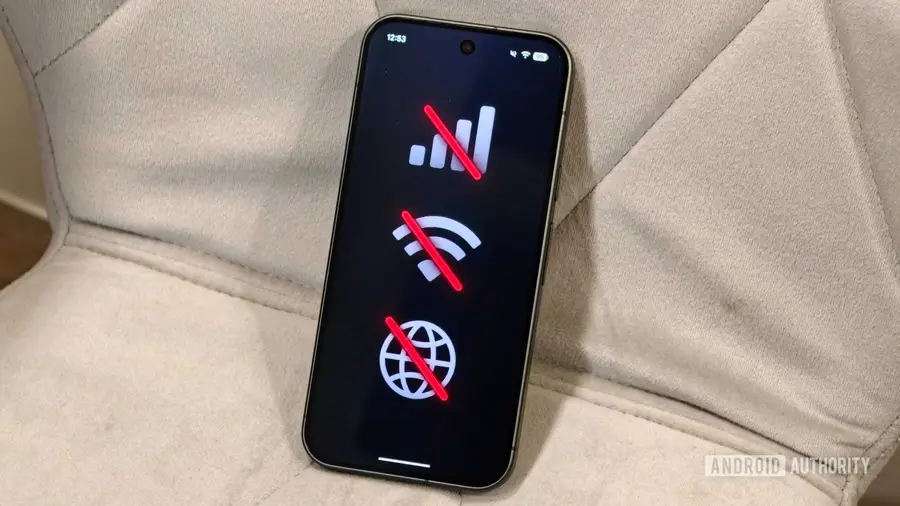
The Google Pixel 11 series has introduced a new MediaTek modem, which has generally enhanced connectivity compared to the previous Pixel 10 series. However, some users are encountering challenges with mobile data and Wi-Fi connections. If you're facing issues with your Pixel 11, here are several troubleshooting methods to consider before opting for a return.
Restart Wireless Connections
One of the simplest approaches to resolve connectivity issues is to restart the wireless connections. You can do this easily by toggling Airplane mode on and off. This action disconnects your phone from the cellular network and Wi-Fi temporarily, allowing it to reconnect fresh and potentially fix any transient issues.
To toggle Airplane mode, swipe down to access Quick Settings, click on the Airplane mode icon, wait a few seconds, and then tap it again. Alternatively, navigate to Settings -> Network & internet -> Airplane mode to achieve the same result.
Check Your SIM Card
If the Airplane mode toggle doesn't work, a physical check of your SIM card may be necessary. Remove the SIM card from your device and inspect it for any visible damage or wear. Reinsert the SIM and see if the connectivity improves.
If you're using an eSIM, go to Settings -> Network & internet -> SIMs, select your eSIM, and temporarily disable it. After a short wait, enable it again to see if this resolves the issue.
Disable Adaptive Connectivity
The Pixel 11 features Adaptive Connectivity, which allows the device to switch to cellular data when Wi-Fi is slow or unavailable. Although this function can help optimize battery life, it may also interfere with your connectivity. If you're experiencing issues, consider turning off Adaptive Connectivity.
To disable this feature, go to Settings -> Network & internet -> Adaptive Connectivity and toggle off both Auto switch to mobile network and Optimize network for battery life.
Review Mobile Data Settings
If your mobile internet has suddenly stopped working, especially while traveling, it’s prudent to check your mobile data settings. Ensure that data roaming is enabled by navigating to Settings -> Network & internet -> SIMs, selecting your SIM, and confirming that roaming is turned on. Be aware that additional charges may apply based on your carrier and plan.
Additionally, check if a mobile data limit has been set. Android allows users to set data warnings or hard limits that can stop mobile data once a threshold is reached. You can review this by heading to Settings -> Network & internet -> SIMs, selecting your active SIM, and examining Data warning & limit.
Reset Mobile Network Settings
If none of the previous steps work, resetting the mobile network settings might be your best option. This action will restore your cellular network settings to their defaults without deleting your eSIMs.
To reset, go to Settings -> System -> Reset options -> Reset mobile network settings. You will need to confirm the reset using your PIN or passcode. Note that Wi-Fi and Bluetooth settings are managed separately, so if you need to reset those, you must select Reset Bluetooth & Wi-Fi from the same menu.
Finally, ensure your Pixel 11 is updated with the latest software, as Google regularly releases updates to fix bugs related to connectivity. If the issues persist, it may indicate a problem with your carrier, SIM, or the hardware that these software solutions cannot resolve.
Source: https://www.androidauthority.com/pixel-11-signal-problems-troubleshooting-tips-3714401/