Introduction to iPhone Privacy
In today's digital age, ensuring the privacy of your devices is more important than ever. If you're an iPhone user frequently working in public spaces or lending your phone to others, it's wise to review your privacy settings. Here are some essential tips to enhance your device's security.
Adjusting Notification Previews
One of the simplest yet most effective privacy settings is managing how notifications appear on your lock screen. By default, your iPhone may show message previews, banking alerts, and other sensitive notifications, making it easy for anyone nearby to see them. To change this setting, go to Settings > Notifications > Show Previews and select When Unlocked. This ensures that your notifications are only visible after Face ID verification, safeguarding your information when your phone is left unattended.
Using Face ID for Sensitive Apps
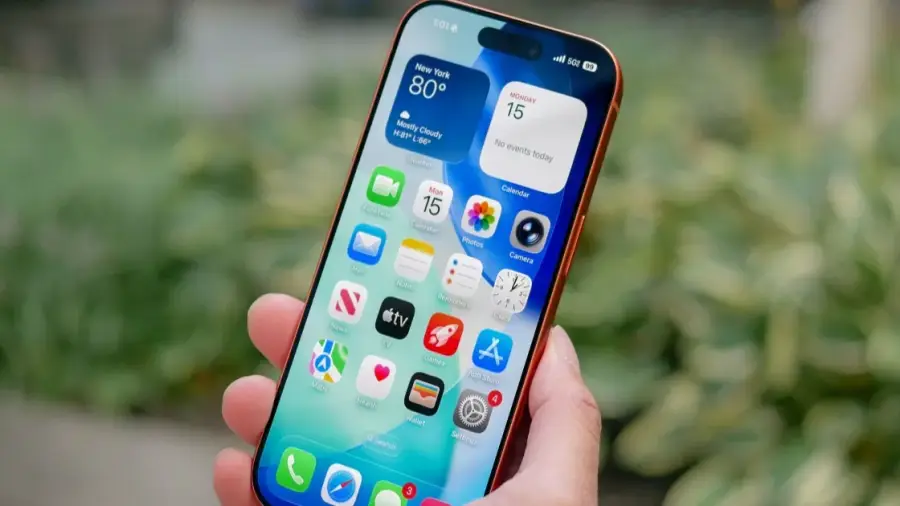
Apple offers a valuable feature that allows you to require Face ID before accessing certain applications. This is particularly useful for apps containing sensitive information, such as banking or photo storage apps. To enable this, press and hold the app icon on your Home Screen, then select Require Face ID. It’s a smart move to secure your Notes and Photos apps to prevent unauthorized access.
Location Access Management
Regularly reviewing your app's location permissions is crucial for maintaining your privacy. Many apps may have broader location access than necessary, which can be easily adjusted. To do this, navigate to Settings > Privacy & Security > Location Services, and change the access to While Using the App whenever possible. This minor adjustment can significantly enhance your privacy.
Understanding Security Check
Another underutilized feature is the Security Check tool, designed for users needing to quickly revoke shared access in unsafe situations. You can access it by going to Settings > Privacy & Security > Security Check. This tool helps you review who can see your location and shared photos, allowing you to manage your privacy better.
Revoking App Permissions
It's also wise to audit which apps have access to your camera and microphone. You might be surprised to find apps that you haven't used in a while still hold these permissions. To revoke access, go to Settings > Privacy & Security and check your permissions. This quick audit can help ensure that only trusted apps have access to your device's sensitive hardware.
Hiding Sensitive Apps
If you have applications containing personal or financial information, consider hiding them from your Home Screen. This can be accomplished by long-pressing the app icon, selecting Require Face ID, and then choosing Hide. The app will be moved to a locked folder in the App Library, adding an extra layer of security.
Reviewing App Privacy Reports
Lastly, make it a habit to check the App Privacy Report, which shows how often apps access your location, camera, microphone, and network connections. To enable this feature, go to Settings > Privacy & Security > App Privacy Report. Regularly reviewing these reports can help you identify apps that may be overreaching in their permissions.
Conclusion
While these recommendations are solid, it's essential to explore additional security features such as Device Theft Protection and disabling Control Center access on the lock screen. Adjusting these settings can prevent unauthorized changes to your device if it gets stolen. Taking a few minutes to review these privacy settings can significantly enhance your iPhone's security and give you peace of mind.
Source: https://telset.id/how-to/chatgpt-beri-7-tips-privasi-iphone-yang-jarang-diketahui