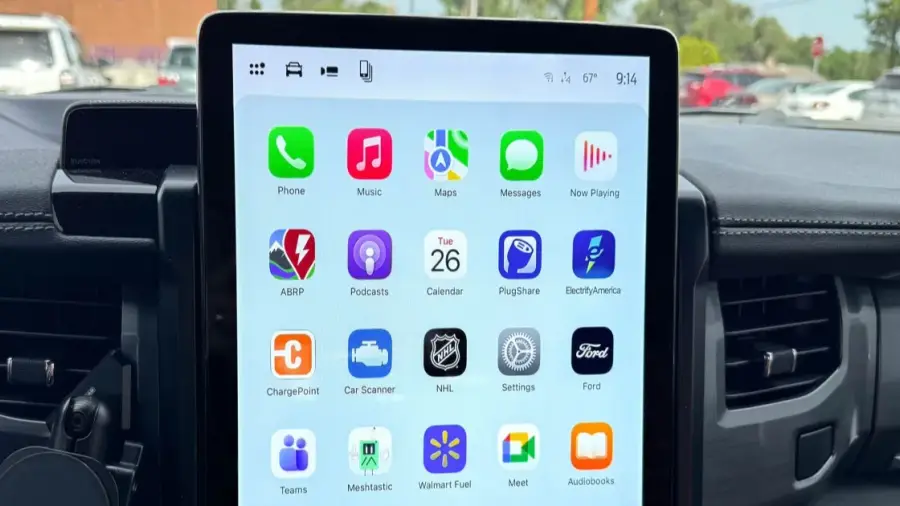
Apple CarPlay offers a seamless way to integrate your iPhone with your car, but its automatic display of compatible apps can be overwhelming. For instance, with the recent addition of ChatGPT support, the app's icon may appear on your screen even if you rarely use it. Fortunately, there's a straightforward method to organize your CarPlay apps for a cleaner interface. You can set this up directly from your iPhone, without needing to be in your car. Here’s a step-by-step guide.
Step 1: Access iPhone Settings
To begin, locate and open the Settings app on your iPhone. This is where you will make all necessary adjustments for your CarPlay applications.
Step 2: Navigate to General Settings
Within the Settings menu, scroll down and select the 'General' option. This section contains various system settings, including those for CarPlay.
Step 3: Select CarPlay and Your Vehicle
In the General settings, find and tap on 'CarPlay'. You will see a list of vehicles that you have previously set up with Apple CarPlay. Choose your vehicle from this list to proceed.
Step 4: Manage Your Apps
The next screen will provide options to turn off CarPlay for the selected vehicle, forget the vehicle, and view the available apps. Since the focus here is on organizing your apps, tap on 'Apps' from the list.
Step 5: Add, Remove, and Rearrange Apps
You will now see all the apps installed on your iPhone that support CarPlay. Note that core apps like Phone, Music, Maps, Messages, Settings, and Now Playing cannot be removed. However, all other apps can be added or removed from the 'Included Apps' section. Tap the red button next to an app's name to remove it from your CarPlay display, or tap the green button to add it.
Once you have arranged the apps to your liking, take a moment to reorder their display. You can drag and drop apps into your preferred positions using the three-line handle next to each app.
If you're making these changes while inside your car, you can see the adjustments take effect in real-time. If you do this before your next trip, the changes will appear the next time you connect your iPhone to your vehicle.
Enhancing Your Driving Experience
By organizing your CarPlay apps, you can ensure a more focused and less distracting driving experience. You won't have to sift through unnecessary apps while on the road, making it easier to stay productive and safe.
For more insights on the latest technology and tips, check out articles on various tech events and social media management strategies. Remember, technology is not just about gadgets but also about innovation and enhancing our daily lives.
Source: https://telset.id/how-to/cara-atur-aplikasi-apple-carplay-di-iphone-dengan-mudah