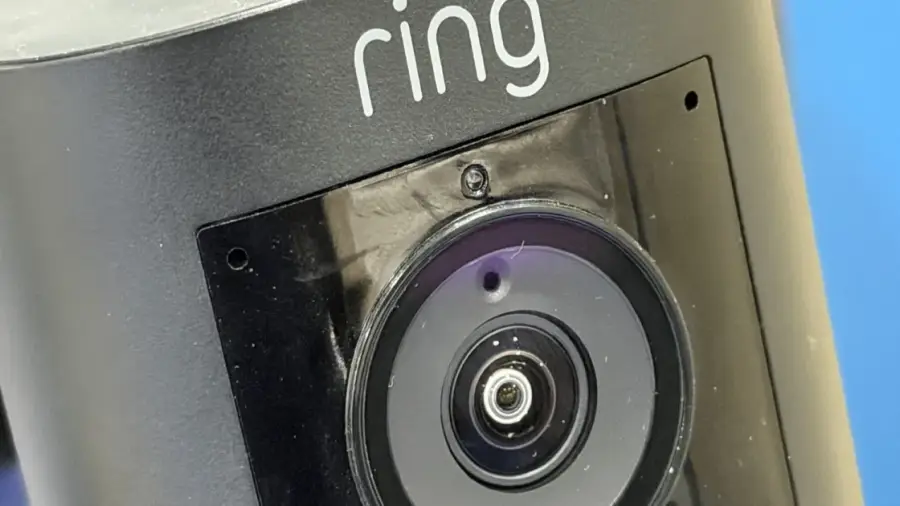
Watching your favorite show on a Smart TV can be interrupted by the sound of the doorbell. Thankfully, there’s a solution that allows you to connect your Ring Doorbell to your Smart TV, enabling you to see who’s at your door without needing to grab your phone. This integration lets you view the front of your home in real-time without pausing your program.
Setting up this feature is surprisingly straightforward, although compatibility largely depends on the type of TV you own. Amazon Fire TV provides the most seamless integration since Ring is part of the Amazon ecosystem. However, other TV brands can also achieve similar functionality with some additional steps.
Compatible Devices for Ring Integration
Since Ring belongs to Amazon, the best integration occurs within the Amazon ecosystem. Several devices support this connection natively, starting with smart displays like the Echo Show series. Families using Fire TV devices, including the Fire TV Stick and Fire TV Cube, will find the integration particularly smooth.
For those without Amazon hardware, live feeds can still be accessed via the Ring app available on iOS and Android devices. Additionally, Samsung Smart TVs from 2022 and later models support Ring integration through the SmartThings platform.
Connecting Ring to Fire TV
For the best experience, use a TV that runs on Amazon Fire OS, which includes brands like Panasonic, TCL, Hisense, Toshiba, and Insignia. These devices can connect directly to your Ring account through the Alexa app. If you have a Samsung Smart TV, it operates on Tizen OS, but recent models come with a built-in SmartThings hub allowing Ring connections.
If you don’t own a Fire TV or a compatible Samsung TV, consider using a Fire TV Stick or Cube plugged into your TV's HDMI port. This setup provides the same native Ring integration, complete with picture-in-picture notifications and Alexa voice commands.
Steps for Setting Up Your Device
Fire TV makes it easy to set up Ring notifications, whether you are using a Fire TV device or a Fire TV Stick. Follow these steps:
- Ensure your Fire TV is connected to the internet.
- Open the Alexa app and link your Ring account.
- Set up notifications preferences for your TV.
After completing these steps, you will receive picture-in-picture alerts on your TV whenever someone rings the doorbell. You can also request a live feed at any time using Alexa voice commands.
Using Samsung SmartThings for Integration
For those with Samsung Smart TVs, additional steps are needed:
- Access the SmartThings app and add your Ring device.
- Set up notification preferences through the app.
Once configured, you’ll receive alerts on your Samsung TV when motion is detected or when the doorbell is pressed. This integration allows you to stay focused on your show without the distraction of checking your phone.
Alternatives If Your TV Is Not Compatible
If your TV doesn’t fall into the compatible categories, screen mirroring is a feasible alternative. Launch the live feed through the Ring app on your smartphone and mirror your screen to your TV. However, keep in mind that this method may not be as efficient as native integrations.
The primary goal of these integrations is to quickly identify who is at your door when the bell rings. If you have to open the Ring app, you can still check on your phone, but screen mirroring offers a workaround for those without compatible devices.
Integrating your Ring Doorbell with your Smart TV enhances home security and convenience. You can respond quickly to visitors or deliveries without interrupting your viewing experience. This feature is particularly beneficial for families watching TV together, allowing everyone to see who is at the door without scrambling for a phone.
For those considering a Ring Doorbell, ensure your TV is compatible with supported ecosystems. If you have a Fire TV, the setup is straightforward. For Samsung TVs, verify that your model is from 2022 or newer. If you own a different brand, the Fire TV Stick or Fire TV Cube are excellent options that offer easy access to Ring features without needing to replace your TV.
Make sure your home internet connection is stable to support real-time video streaming. A slow connection can lead to delays or poor image quality when notifications appear.
Connecting your Ring Doorbell to your Smart TV is a practical solution for enhancing home security. By following the outlined steps, you can enjoy real-time video notifications on a larger screen without interruptions. The best options leverage Fire TV or Samsung SmartThings for seamless integration, but screen mirroring remains a viable alternative. Ensure your devices are compatible before starting the setup process, and enjoy peace of mind knowing you won’t miss important visitors while watching TV.
Source: https://telset.id/how-to/cara-mudah-hubungkan-ring-doorbell-ke-smart-tv