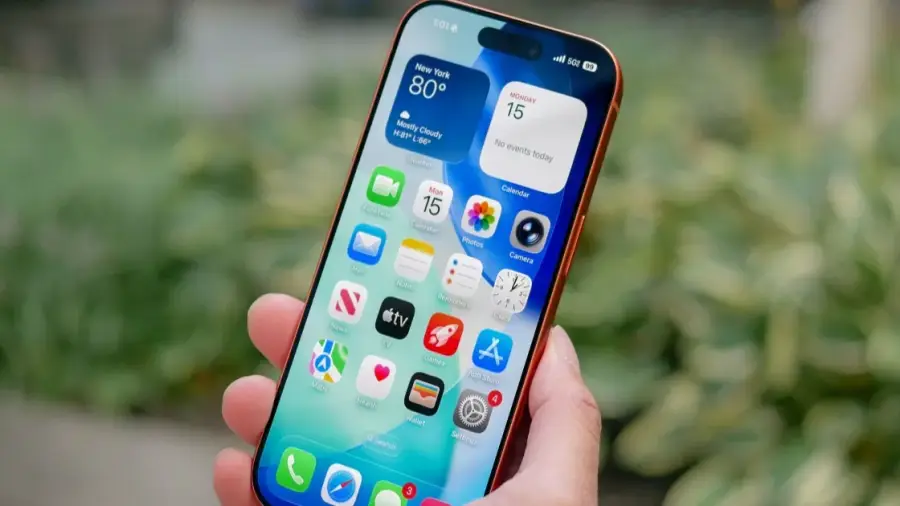
For iPhone users, especially those who frequently work in public places or lend their devices to family members, auditing privacy settings can be essential. Instead of relying on popular online trends, one user sought the assistance of ChatGPT to uncover the most vital privacy settings. While some suggestions were familiar, several hidden features within iOS proved to be invaluable. Here are seven privacy settings that every iPhone user should consider implementing.
Modify Notification Previews
One of the simplest privacy adjustments involves changing how notifications appear on your lock screen. By default, notifications for messages, banking alerts, and authentication codes can be viewed without unlocking the device. To secure this information, follow these steps:
- Navigate to Settings > Notifications > Show Previews.
- Select When Unlocked.
This change ensures that Face ID must authenticate you before any notification details are displayed, making it crucial for those who often leave their phones unattended in public.
Require Face ID for Sensitive Apps
Apple's latest privacy feature allows users to require Face ID verification before accessing specific applications. This applies not just to banking and credit card apps but also to Notes, Photos, and other apps containing sensitive information. To enable this feature:
- Press and hold the app icon on the home screen.
- Select Use Face ID.
It's particularly advisable to lock access to Notes and Photos, as these apps often contain personal data.
Review Location Access for Apps
Many users may overlook the location permissions granted to various apps. To enhance your privacy, set location access to While Using the App. Here’s how to check and adjust these settings:
- Go to Settings > Privacy & Security > Location Services.
Regularly reviewing location permissions can help you maintain control over your privacy, preventing unnecessary tracking by apps.
Utilize the Security Check Feature
The Security Check feature is a lesser-known privacy tool that allows users to quickly manage and revoke shared access in potentially unsafe situations. It also serves as a useful way to review shared information. To access it:
- Open Settings > Privacy & Security > Security Check.
This tool can reveal what information you are sharing without realizing it, such as location and shared photos.
Audit App Permissions
Many users remain unaware of apps that still have access to sensitive features like the camera and microphone, especially those that haven't been opened in a while. To conduct a quick audit:
- Go to Settings > Privacy & Security.
Removing unnecessary permissions takes only seconds and limits the ability of apps to access your device's most sensitive features.
Hide Sensitive Apps
If you have apps that contain personal information, consider hiding them entirely. This feature moves apps from the home screen to a hidden folder that requires Face ID to access. To hide an app:
- Press and hold the app icon, select Require Face ID, then choose Hide.
This is especially helpful if you occasionally lend your device to others.
Check Application Privacy Reports
The App Privacy Reports feature provides insights into how often apps access your location, camera, microphone, and network connections. To enable it:
- Go to Settings > Privacy & Security > App Privacy Report.
Regularly reviewing this report can help you identify apps that may be overreaching their permissions.
In conclusion, while ChatGPT’s recommendations cover essential privacy settings, it’s vital to explore additional features for enhanced security. Regularly reviewing and adjusting your privacy settings can significantly improve the protection of your personal information. Taking just a few minutes to reassess what your phone shares can lead to a much safer experience.
Source: https://telset.id/how-to/chatgpt-beri-7-tips-privasi-iphone-yang-jarang-diketahui