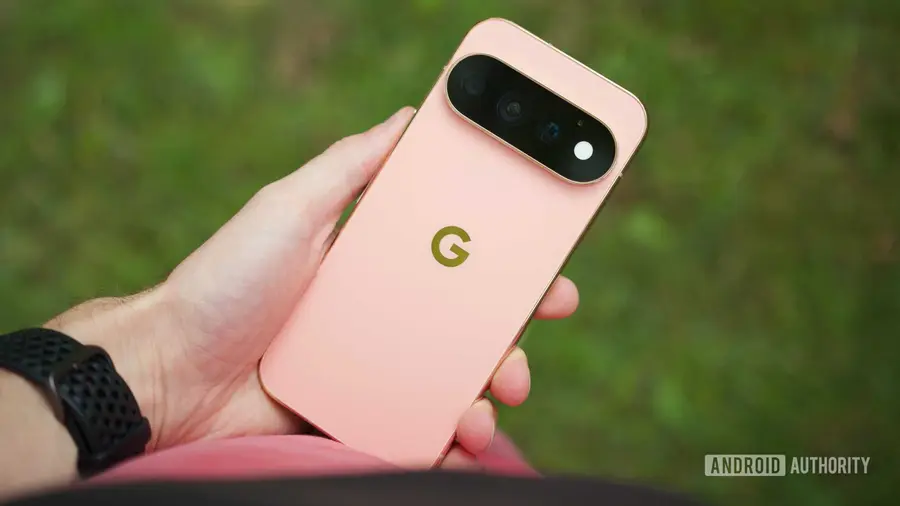
The Google Pixel 11 series has just launched, and while it comes with a variety of features, many settings are not optimized for the best user experience right out of the box. To help you get the most out of your new device, here are ten key settings you should consider adjusting immediately.
Enhance Your Photography with Camera Looks
Known for its impressive camera capabilities, the Pixel 11 series introduces a feature called Camera Looks. This allows users to select the color and tone of their photos before shooting, rather than applying filters afterward. The default option is the standard look, which provides four levels of HDR processing. However, you can explore various stylized Looks that significantly alter colors and contrast.
Utilize Built-in Teleprompter for Content Creation
For social media enthusiasts, the Pixel 11 camera now includes a built-in teleprompter. This feature enables you to read scripts directly from your screen while filming, along with grid lines that help position elements like captions and usernames accurately for social media uploads. These features need to be activated manually for optimal use.
Optimize Charging with Extreme Charging
While the battery capacity hasn't seen drastic improvements this year, Google has introduced a helpful feature called Extreme Charging. This allows your Pixel to prioritize faster charging when your battery is below 50%. To make use of this feature, simply plug in your phone, navigate to Settings > Battery & charging > Extreme Charging, and turn it on. It’s also wise to enable the battery percentage display in the same menu for better battery management.
Customize HiLight Notifications and Connectivity
The Pixel 11 Pro models feature a unique multicolor LED called HiLight. This light can indicate incoming calls by displaying different colors, but you need to assign these colors to your favorite contacts. Additionally, for a more reliable internet connection, enable Adaptive Connectivity, which allows your phone to switch automatically from a weak Wi-Fi network to cellular data when necessary. You can find this option in Settings > Network & internet > Adaptive Connectivity.
Access Notification History and Lock Screen Widgets
To avoid missing important notifications, consider turning on the Notification History feature, which keeps a log of all notifications, including those you've dismissed. You can enable this in the notifications settings. Furthermore, with Android 16’s return of lock screen widgets, you can easily access your favorite apps without unlocking your device. To set this up, go to lock screen settings and customize your shortcuts for quick access.
Take Advantage of Now Playing and Safety Features
The Now Playing feature continues to be a standout, automatically identifying songs in your environment and displaying their titles on your lock screen. It also maintains a history of songs you’ve heard, making it easy to revisit favorites. Ensure this feature is set up through its dedicated app.
Finally, don’t overlook the built-in emergency features like Car Crash Detection. This setting enables your Pixel to alert emergency services if it detects a serious accident. You can enable this in Settings > Safety & emergency > Car Crash Detection, ensuring you’re prepared for any unforeseen circumstances.
These settings are just the beginning of personalizing your Pixel 11. While there are many other features to explore, adjusting these ten will significantly enhance your experience. Which settings will you prioritize? Share your thoughts in the comments!
Source: https://www.androidauthority.com/pixel-11-settings-change-tips-3702992/