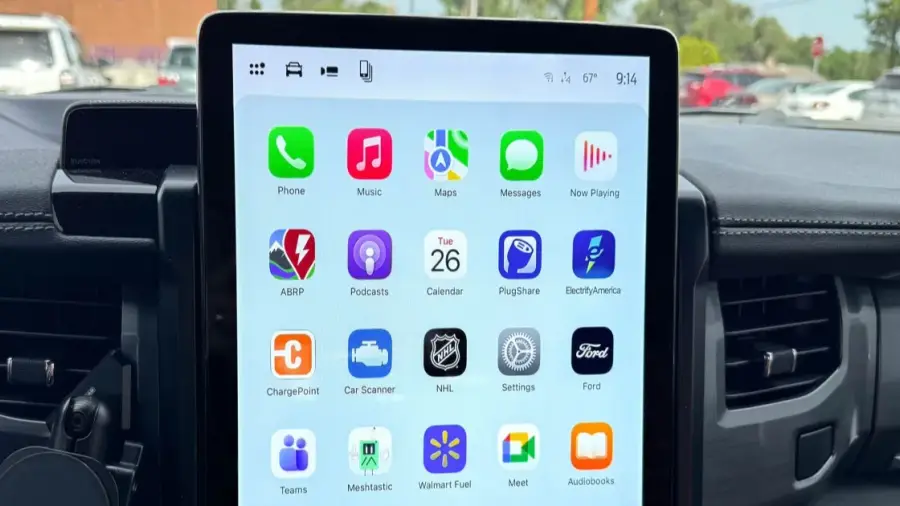
Apple CarPlay enhances your driving experience by allowing seamless access to various apps. However, one common issue users face is the automatic display of all compatible apps on their vehicle's screen, which can lead to clutter. For instance, newer apps like ChatGPT now support CarPlay, adding to the screen's complexity. If you find certain apps unnecessary while driving, there’s a straightforward solution to reorganize them directly from your iPhone without needing to be in your car.
Step 1: Access Your iPhone Settings
To begin, unlock your iPhone and navigate to the Settings app. This process can be completed without having your vehicle nearby, making it convenient to customize your CarPlay experience at any time.
Step 2: Select General Settings
Once in Settings, scroll through the options and tap on General. This section contains various settings related to your device's overall functionality.
Step 3: Navigate to CarPlay Settings
Within the General settings, look for the CarPlay option. Tapping this will display a list of all vehicles you have configured to use CarPlay with your iPhone. Choose the car you want to modify.
Step 4: Manage Your Apps
After selecting your vehicle, you’ll see options to disable CarPlay, forget the car, and manage your apps. Focus on the Apps section. Here, you can view all apps installed on your iPhone that support CarPlay.
Step 5: Customize Your App Layout
While certain core apps like Phone, Music, Maps, Messages, Settings, and Now Playing cannot be removed, most others can be added or deleted from your CarPlay display. To remove an app, tap the red button next to its name. To include an app, press the green button. This makes it easy to create a display that suits your preferences.
You can also rearrange the order of the apps by dragging them using the three-line handle next to each app. If you’re making these changes while in your car, you’ll see the updates in real-time. Conversely, if you adjust them on your iPhone before your next drive, the new layout will be ready when you connect your device to the car.
Enhance Your Driving Experience
By organizing your CarPlay apps, you not only declutter your screen but also create a more focused driving environment. This feature is particularly beneficial for users looking to minimize distractions and enhance safety while on the road.
For more insights into the latest technology trends, check out other articles that discuss various tech innovations and tips for navigating social media challenges.
Source: https://telset.id/how-to/cara-atur-aplikasi-apple-carplay-di-iphone-dengan-mudah