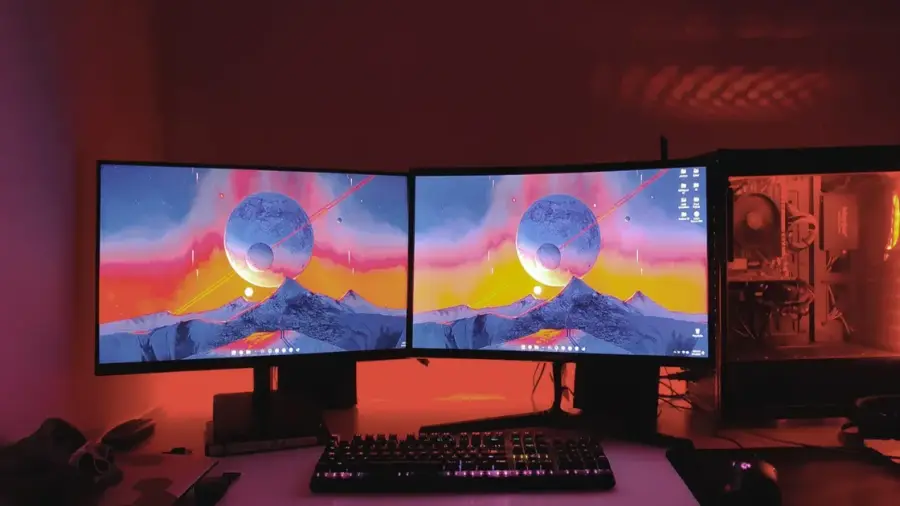
Working from home or spending extended hours at your desk can be truly rewarding when you have everything set up just right—from selecting the right peripherals to discovering the best productivity apps. However, one aspect that software alone cannot replicate is the additional screen real estate that comes with using multiple monitors.
If you haven’t tried it yet, setting up a second monitor might seem daunting. In reality, the process is as simple as connecting it to an available DisplayPort or HDMI port on your computer. While an AI glossary might help with technical terms, a docking station can be invaluable if you’re using a laptop with limited port options.
Advantages of a Dual-Monitor Setup
One of the most significant practical benefits of a dual-monitor setup is the ability to have multiple windows open simultaneously. You can place two 24-inch monitors side by side or stack them vertically if your desk doesn’t have enough horizontal space. There’s no rule against stacking larger monitors, such as 27 or 32 inches, but it’s wise to first consider the optimal viewing distance.
Certain workflows, like programming or writing, can also benefit from positioning one monitor vertically. You can easily adjust the screen orientation through your computer's display settings. Keep in mind how well the two monitors match each other; ideally, you should select the same model to ensure that size, resolution, refresh rate, and color balance are as aligned as possible.
Using a Laptop as a Secondary Display
Just when I thought I had achieved the perfect dual-monitor setup, I relocated and had to rebuild my workspace from scratch. A single 27-inch monitor was sufficient for my workflow, and adding an external display felt excessive. Instead, I opted to use my laptop as a second screen, rather than closing it and docking it beside my main monitor.
Your external monitor is likely much larger than your laptop screen, so finding the right configuration can be a bit tricky. Laptop stands can elevate your device to match the height of your monitor. However, if you’re sitting at the optimal viewing distance from a 24 or 27-inch display, you might find it challenging to see everything on the smaller laptop screen.
For me, placing the laptop directly beneath the monitor worked best. This setup allows you to utilize the laptop's built-in keyboard and trackpad while also eliminating the need for a separate webcam for video calls. You’ll need to adjust to the differences in size and resolution between the two screens. If you’re only using the laptop for secondary applications like Spotify, Slack, or YouTube, these differences are usually not too disruptive. Furthermore, if your laptop supports charging and display output via USB-C, you can power the entire setup with just one cable and a docking station.
Single Monitor Setups: Pros and Cons
While dual-monitor setups are fantastic for multitasking, they might not be a necessity for everyone. Having two or more monitors on the same desk, connected to one laptop or computer, can create cable clutter, require additional outlets, and take up more space. This is where single monitor setups still shine. If you choose this option, it’s advisable to select a larger screen.
After experimenting with several dual-monitor configurations, I eventually reverted to a single 32-inch curved 1440p monitor. Yes, it’s quite large, and yes, it occupies more than half of my desk. However, it provides ample space for multiple windows without the hassle of managing an additional monitor. Looking back, I should have opted for a 4K panel. If you’re considering anything larger than 27 inches, I recommend upgrading to 4K as well.
Enhancing Your Setup
Everything else about having a large monitor is a benefit. You won’t need fancy third-party window management applications to keep track of where you left your apps. There’s also an added aesthetic benefit since there’s no bulky frame interrupting your workspace. In my free time, I enjoy gaming, and few experiences can match the immersion provided by a large, curved monitor.
A life-changing tip is to invest in monitor arms. They offer far greater flexibility and allow you to select the perfect height and tilt settings for your screens, which built-in gaming monitor stands may not always provide. If you’re still unsure, take a moment to reevaluate your workflow priorities, as both dual and large single monitors have their unique advantages.
For users looking to boost productivity without added complexity, utilizing a laptop as a second screen is an efficient and cost-effective solution. On the other hand, for those seeking an immersive, distraction-free experience, investing in a large 4K monitor with an adjustable arm is a worthwhile long-term investment.
Source: https://telset.id/how-to/workflow-upgrade-dual-monitor-vs-single-monitor-terbaik-2026