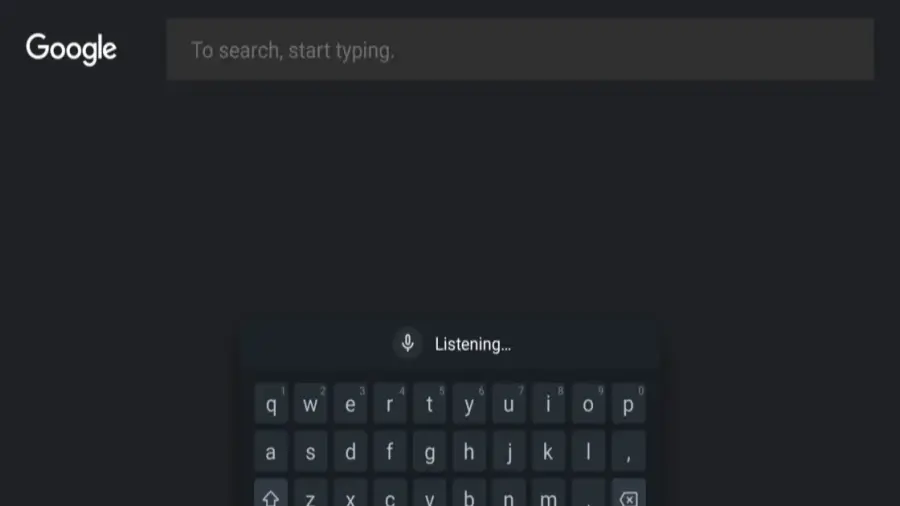
Gboard, the default keyboard on many Android devices including Google Pixel, has achieved over 10 billion downloads on the Google Play Store. Despite its widespread use, there are significant privacy concerns that users should be aware of when using this popular tool.
Understanding Gboard's Data Collection
Many users are apprehensive about what data Gboard collects and how it might be shared with Google. Reports from Android Police suggest that activities conducted on Gboard could potentially be intercepted, decoded, and directly linked to users' identities. According to the data security policies on the Google Play Store, Gboard may gather various types of information such as device IDs, app activity (including installed applications, in-app search history, and app interactions), voice recordings, and diagnostic and performance data.
Google asserts that it does not share this data with third parties; however, users do not have the option to request the deletion of their data.
What Data Does Gboard Send to Google?
Google's support page clarifies that Gboard transmits search queries, usage statistics, and audio clips from the text-to-speech feature back to Google. Importantly, the words saved and anything typed (like passwords or chat messages) are not sent. Nonetheless, Google might leverage user inputs to train AI models on devices through a process known as federated learning, which subsequently sends this information back to their servers. Google may also request access to audio snippets to enhance voice recognition capabilities.
How to Modify Gboard Settings for Privacy
You don't necessarily need to stop using Gboard entirely. There are several settings you can adjust to limit the data sent to Google. The first step is to disable federated learning, which is enabled by default, and delete all data stored on your device to prevent it from being used for AI training.
To do this, navigate to Android Settings > System > Languages & input > On-screen keyboard > Gboard > Privacy, and then select 'Delete learned words and data.' If you believe you have consented to share audio data, go to Settings > Privacy at the top of the keyboard and turn off the 'Audio Donation' option.
Additional Privacy Settings in Gboard
Under the Settings > Privacy menu in Gboard, you can also disable the sharing of usage statistics, personalization features, and the data collection option labeled 'Improve for everyone,' which sends word and phrase patterns to Google servers.
Alternatives for Privacy-Conscious Users
For those who are particularly concerned about privacy, there are alternatives to Gboard, such as HeliBoard, which is offline, free, and open-source, or FUTO, which also operates offline and does not collect or share user data. However, these alternatives may come with their own limitations compared to Gboard's features.
To further protect your data, consider exploring the AI Browser Security Guide to ensure safe browsing practices. If you encounter connection issues, check out the guide on How to Resolve Limited WiFi Access for quick solutions.
Source: https://telset.id/how-to/cara-membatasi-data-pribadi-di-gboard-android