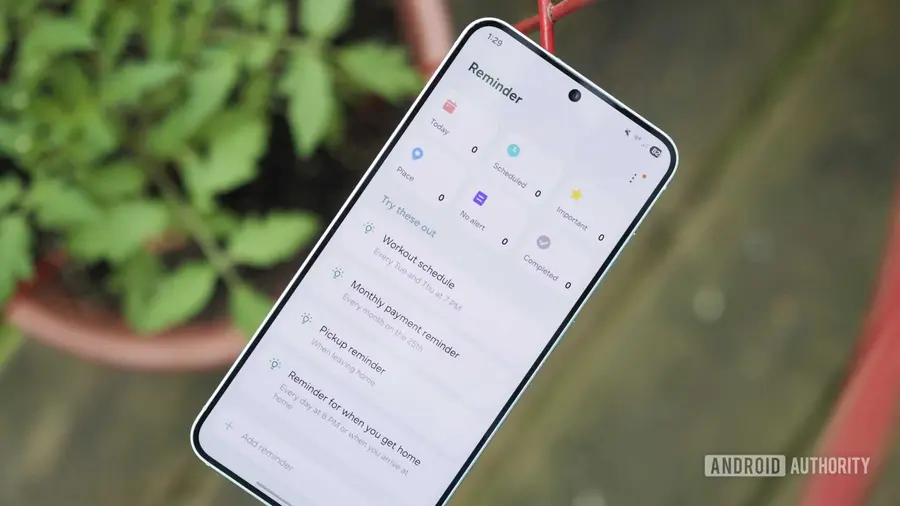
Samsung Reminder is a powerful tool that many users rely on daily to keep track of important tasks and events. While it’s easy to overlook some of its features, there are numerous tips and tricks that can enhance your experience and help you stay organized. Here, we share ten essential tips for getting the most out of Samsung Reminder.
Utilize Location-Based Reminders
One of the standout features of Samsung Reminder is its location-based reminders. These allow you to set alerts that trigger when you arrive at or leave a specific location. This functionality is particularly helpful for organizing shopping lists based on where you are. For instance, when you arrive at a shopping center, you can receive reminders for items you need to pick up.
To set a location-based reminder, open the Samsung Reminder app and enter your reminder text. Click on the Location icon, type in the address or search for a location, and adjust the radius for the alert.
Make Use of Reminder Suggestions
Samsung Reminder offers a feature that suggests reminders based on your past entries. This can save you significant time, especially for recurring tasks. To access these suggestions, tap the magnifying glass icon, enter a keyword related to your reminder, and view the related suggestions from your previous reminders.
Create Checklists for Complex Tasks
Sometimes, a simple reminder isn't enough, especially for tasks that involve multiple steps. Samsung Reminder allows you to create checklists, which can be linked to specific times or locations. This is particularly handy for managing shopping lists or project tasks. To add a checklist, tap the Add Reminder text bar, select the checkmark icon, and start entering your items.
Stay Organized with Custom Categories
Keeping your reminders organized is crucial for efficiency. Samsung Reminder allows you to categorize your reminders into custom sections. For instance, you might have categories for work tasks, personal errands, or freelance projects. To create or manage categories, tap the three-dot menu in the upper-right corner and select Manage categories.
Adjust Alert Types for Better Notifications
To ensure you never miss an important reminder, Samsung Reminder offers customizable alert styles. Navigate to the Settings menu and choose Alert type to select from various notification intensities, ranging from subtle to strong. You can also personalize the alert background by selecting a different wallpaper or color.
Use Widgets for Quick Access
For users who prefer quick access to their reminders, Samsung Reminder provides a widget that can be placed on your home screen. This allows you to view and check off tasks directly without opening the full app. To add the widget, long-press on your home screen, navigate to Widgets, and select Samsung Reminder. Choose the widget size that suits your preference.
Integrate with Samsung Calendar
Samsung Reminder works seamlessly with Samsung Calendar, allowing you to add and manage reminders directly from your calendar. This integration is particularly useful for users who share a family calendar. To add a reminder, open the Samsung Calendar app, long-press on a date, and choose the Reminder option to enter your task.
Voice Commands with Gemini
If you prefer hands-free operation, you can use voice commands with Samsung’s Gemini app to create reminders. Although location-based reminders aren't available through voice prompts, this feature allows for quick entry of time-based reminders. Simply activate Gemini and ask it to set a reminder.
Set Recurring Reminders to Stay on Track
For tasks that need repeating, Samsung Reminder allows you to set reminders that recur at your chosen frequency. You can set reminders to repeat every minute, hour, day, week, month, or year. This feature is particularly useful for tasks like taking medication or household chores.
Never Forget Important Tasks Again
With these tips, you can fully leverage the capabilities of Samsung Reminder to manage your tasks effectively. By utilizing location-based reminders, creating checklists, and customizing alerts, you can enhance your productivity and ensure that you never overlook an important task.
Source: https://www.androidauthority.com/samsung-reminder-tips-tricks-2026-3702896/