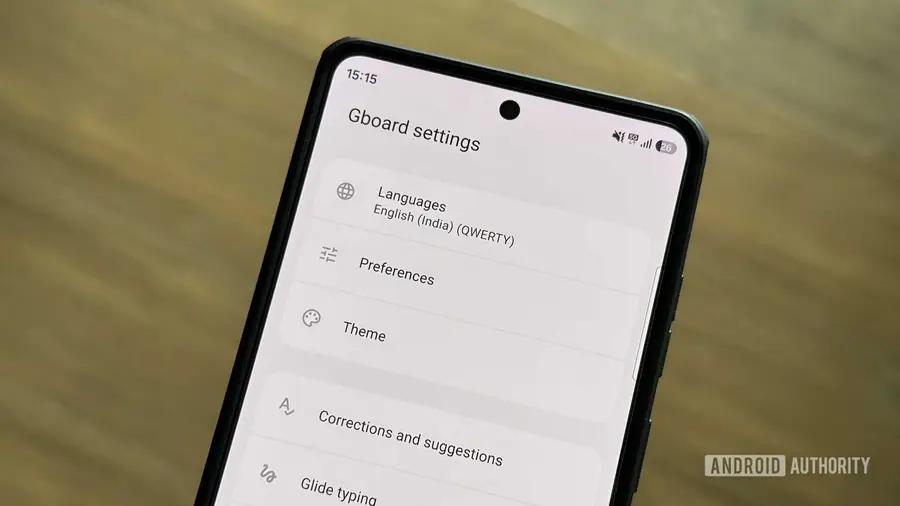
Gboard has become a favorite for many Android users due to its customizability and impressive features. However, the default settings may not suit everyone’s needs. Here are six settings I change right away after getting a new Android phone.
Enable the Dedicated Number Row
By default, Gboard does not show a dedicated number row, which can be inconvenient for frequent number entry. Instead, you have to switch to the number/symbol keyboard, which interrupts your typing flow. To enable the number row, open Gboard, tap the gear icon in the suggestion strip, go to Preferences, and toggle on the Number row option. If the suggestion strip is hidden, navigate to Gboard settings in your device's settings, find Preferences, and enable the Number row there.
Use Touch and Hold for Symbols
Typing symbols can also be cumbersome with Gboard's default settings. You typically have to switch keyboards to access symbols, which can slow down your typing. Fortunately, there is a setting to allow you to hold down keys to input symbols directly. To activate this feature, go to Preferences in Gboard settings, scroll to the Shortcuts section, and enable the Touch and hold keys for symbols option. This feature allows you to long-press a letter key to access its corresponding symbol, significantly speeding up your typing.
Disable Auto-Capitalization
While auto-capitalization is helpful for some users, it can be a nuisance for others, especially in casual texting scenarios. It often leads to unnecessary capitalization, making messages harder to read. To turn off this feature, visit the Gboard settings, select Corrections and suggestions, and toggle off the Auto-capitalization option. This adjustment can enhance your typing experience, allowing for greater flexibility in your messages.
Set Up a Personal Dictionary
If you frequently share specific phrases or addresses, setting up a personal dictionary is invaluable. This feature allows you to create shortcuts for commonly used text snippets. To set this up, go to the Dictionary section in Gboard settings, choose your language, and tap the + button. Enter the full text in the Type a word field and your desired shortcut in the Optional shortcut field. This saves you from repetitive typing and speeds up communication.
Customize the Suggestion Strip
The suggestion strip above the keyboard is a powerful tool that provides useful shortcuts and suggestions. By default, it may not show your preferred tools. You can customize it by tapping the four-square icon and then the pencil icon to edit. Rearrange your favorite tools, such as Google Translate or clipboard access, and save your changes for quicker access in the future.
Adjust Privacy Settings
Gboard collects a range of data to improve its features, which can raise privacy concerns. To limit what you share, go to the Privacy section in Gboard settings and toggle off options like Share usage statistics and Personalize for you. If you want to delete previously collected data, tap Delete learned words and data, enter the required code, and confirm. Keep in mind that this will remove personalized suggestions, affecting how Gboard functions.
Along with these primary settings, I also tweak other features, such as disabling Smart Compose and adjusting haptic feedback. Additionally, I change the keyboard theme and resize it to optimize screen space, especially on smaller devices. Making these adjustments can greatly enhance your typing experience on Gboard.
Source: https://www.androidauthority.com/gboard-settings-i-always-change-3723138/