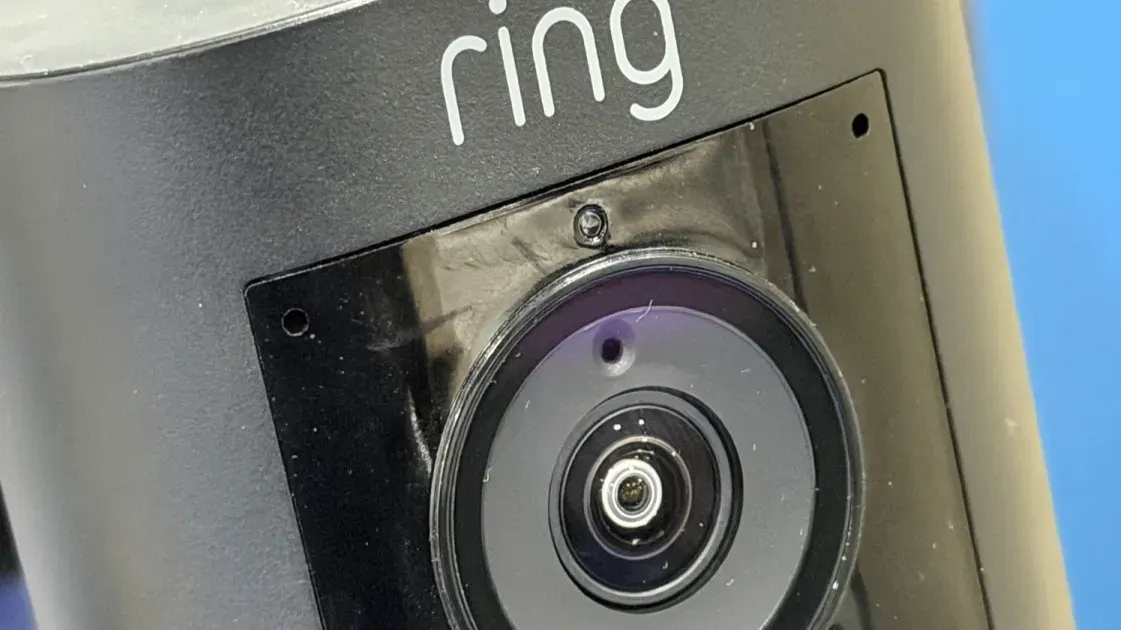
Are you tired of missing deliveries or visitors while watching your favorite shows? With the ability to connect your Ring Doorbell to your smart TV, you can now receive real-time video notifications directly on your screen without reaching for your phone. This article will guide you through the simple steps to set up this integration and ensure you never miss a visitor again.
Why Connect Your Ring Doorbell to a Smart TV?
Integrating your Ring Doorbell with a smart TV enhances your home security experience. Instead of interrupting your viewing to check your phone every time someone rings the doorbell, you can view a live feed right on your TV screen. This feature is particularly helpful for families who enjoy watching TV together, as everyone can see who is at the door without scrambling for a mobile device.
Compatibility with Smart TVs
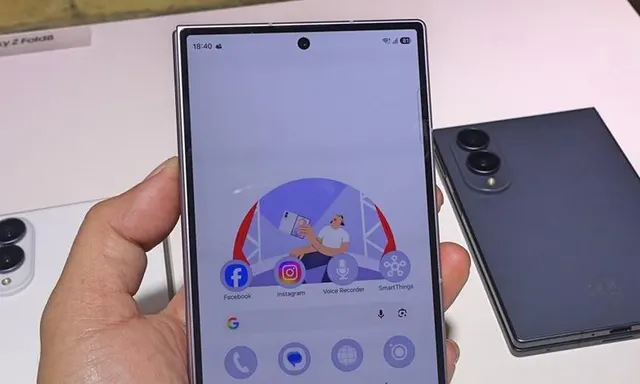
Before you begin the setup process, it’s essential to check if your smart TV is compatible with the Ring Doorbell. The best integration is found within Amazon’s ecosystem, especially if you own an Amazon Fire TV, which allows for seamless connectivity. TVs from brands such as Panasonic, TCL, Hisense, Toshiba, and Insignia that run on Fire OS will have native support. If you own a Samsung Smart TV from 2022 or later, you can use the SmartThings platform for integration as well.
Setting Up Your Ring Doorbell with Amazon Fire TV
If you have an Amazon Fire TV, the setup is straightforward. Here’s how you can do it:
- Ensure your Ring Doorbell is installed and properly configured.
- Connect your Fire TV to the same Wi-Fi network as your Ring Doorbell.
- Enable the Ring skill in your Alexa app and link your Ring account.
- Once linked, your Fire TV should automatically display a picture-in-picture feed when someone rings the doorbell.
This integration allows you to use voice commands via Alexa to pull up the live video feed whenever you need it.
Using Samsung SmartThings for Integration
For Samsung Smart TV owners, the process involves a few additional steps:
- Download the SmartThings app on your smartphone.
- Add your Ring Doorbell to the SmartThings app.
- Ensure your TV is connected to the SmartThings Hub.
Once set up, you’ll receive notifications on your Samsung TV when motion is detected or when the doorbell is pressed. This integration keeps you focused on your show without needing to check your phone constantly.
Alternative Solutions for Other TV Brands
If your TV does not support native integration, don’t worry! Screen mirroring is a viable alternative. Simply open the Ring app on your smartphone and mirror the screen to your TV. While this method may not be as efficient as the others, it still provides a practical solution for viewing who is at your door.
Although screen mirroring is a useful workaround, it may not offer the same seamless experience as direct integration. Nevertheless, it allows you to keep an eye on your front door without much hassle.
Final Thoughts
Connecting your Ring Doorbell to your smart TV provides a convenient solution for monitoring your home security. By following the outlined steps, you can enjoy real-time notifications on a larger screen, enhancing your overall viewing experience. Whether you’re using an Amazon Fire TV, a Samsung Smart TV, or opting for screen mirroring, you can ensure that you’re always aware of who’s at your door.
If you’re looking to improve your home security setup, consider investing in a Ring Doorbell and ensure your smart TV is compatible for an easy and effective integration.
Source: https://telset.id/how-to/cara-mudah-hubungkan-ring-doorbell-ke-smart-tv